
Custom study for Sierra Chart
When a limit is reached, the trading day ends
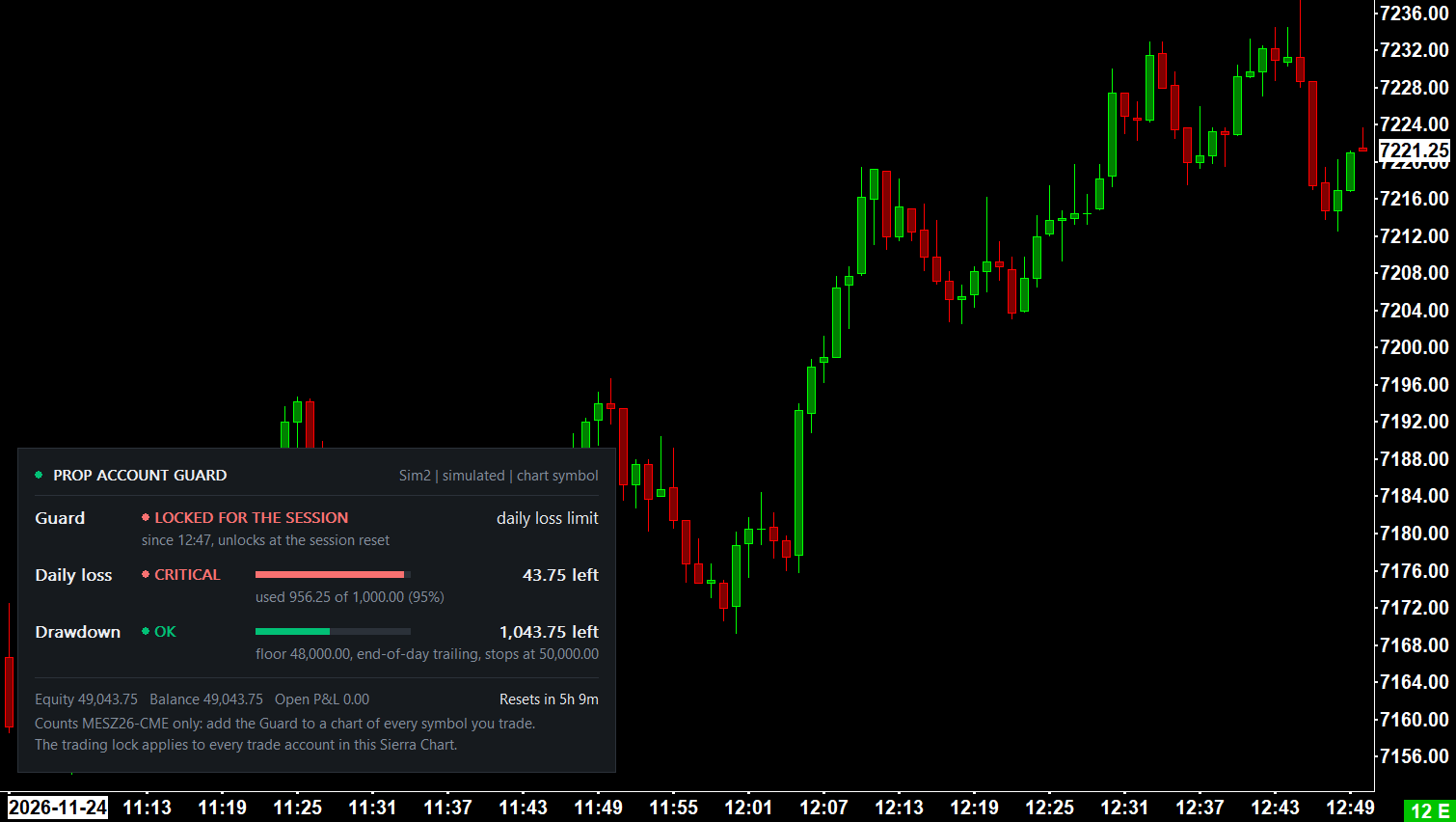
Prop Account Guard watches your daily loss limit and your drawdown floor. When one is reached, it closes the position, cancels the orders and locks trading on every chart that has the Guard.
USD 39 one-time, per Sierra Chart account name

What it does
Daily loss limit
Acts at your limit minus a safety buffer. Closes the position of its chart symbol, cancels its working orders and locks trading until the session reset.
Drawdown floor
Static, intraday trailing or end-of-day trailing, with an optional floor stop. This lock survives a restart and ends only when you clear it.
Flat by a set time
At the time you choose, positions are closed and trading stays locked until the reset.
Discipline limits
Optional: max trades per session, max losing trades in a row, and a daily profit target that closes and locks or only blocks new entries.
Stays locked
A position or an order in the chart symbol that appears while trading is locked is closed or cancelled at the next update.
Says what it did
The panel shows the state, the reason, the lock time and what ends the lock. Every action is one Message Log line with the numbers.


How access arrives
You order
With your order you give us the Sierra Chart account name you sign in with. Once sales open, Paddle.com, our reseller, takes the payment and sends the receipt.
We authorise the name
Within one business day we add your account name in Sierra Chart and confirm by email.
Sierra Chart downloads it
Restart Sierra Chart. It downloads the study into its Data folder by itself, and you add it to your charts. No installer, no keys.
Pricing
USD 39
One-time payment, for one Sierra Chart account name. No subscription.
- Prop Account Guard licence for that account name
- On any computer where you sign in to Sierra Chart with it
- Updates of version 1.x
- User guide and email support
- 14-day refund, see the refund policy
Sold by Paddle.com, our reseller and Merchant of Record, once sales open. Paddle may add sales tax or VAT for your country at checkout. The licence terms apply.
What you need
- Sierra Chart 64-bit on Windows 10 or 11, with your own Sierra Chart account. Sierra Chart itself is not included.
- Trade >> Auto Trading Enabled, both Global and Chart, switched on. Without it Sierra Chart ignores the Guard, and the panel says CANNOT ENFORCE.
- Trade >> Disable Auto Trading On Startup switched off.
- Recommended: Hold Market Order Until Pending Cancel Orders Confirmed in General Trade Settings.
Limits of version 1
- One Guard on each traded symbol chart. It closes only the symbol of its own chart. A symbol without a Guard is not closed, and while Sierra Chart lists an open position there, the Guard does not set the trading lock, so that you can close it.
- Each Guard measures its own chart symbol where Sierra Chart reports no account balance, as in Trade Simulation Mode, where version 1 was tested. Losses of different symbols are not added together. Measuring the whole account is not promised in version 1.
- The trading lock is Sierra Chart’s own. It applies to every trade account in that Sierra Chart, so we recommend one account per Sierra Chart while the Guard is on.
- With another trading service, try the Guard on a simulated account first.
What it does not do
- It never opens positions and never places entry orders.
- It gives no trade ideas and no investment advice.
- It works only while Sierra Chart is running and the chart receives data. Slippage, gaps, data delays and connection loss exist; the safety buffer is not a guarantee.
- It does not know your firm’s rules. You enter the limits. Before you buy, check with your firm that a tool which closes positions and locks trading is allowed on your account.
Try the free Monitor first
Prop Drawdown Monitor shows the room left to your daily loss limit and your drawdown floor, right on the chart. It is free and read-only.
Questions
Will it trade for me?
No. It only closes positions, cancels orders and locks trading, at the limits you enter.
Sierra Chart has its own profit and loss management. Why this?
The Guard is built around prop account rules: trailing drawdown floors with a floor stop, a safety buffer before each limit, a lock that lasts until the session reset, discipline limits, and a panel that shows where it will act. Read the guide before you decide.
Can I close a position myself while it is locked?
Yes. Untick Trade >> Trading Locked and close it. The Guard takes that as your emergency exit and does not lock again until a new limit is reached. It keeps its own chart symbol flat meanwhile.
Can I try something first?
Yes. The free Prop Drawdown Monitor shows the same daily loss and drawdown measurements. It is read-only: it never closes anything.
I have a new Sierra Chart account name. What now?
Write to hello@uniano.dev. We move your licence to the new name and remove the old one.